# Elevators

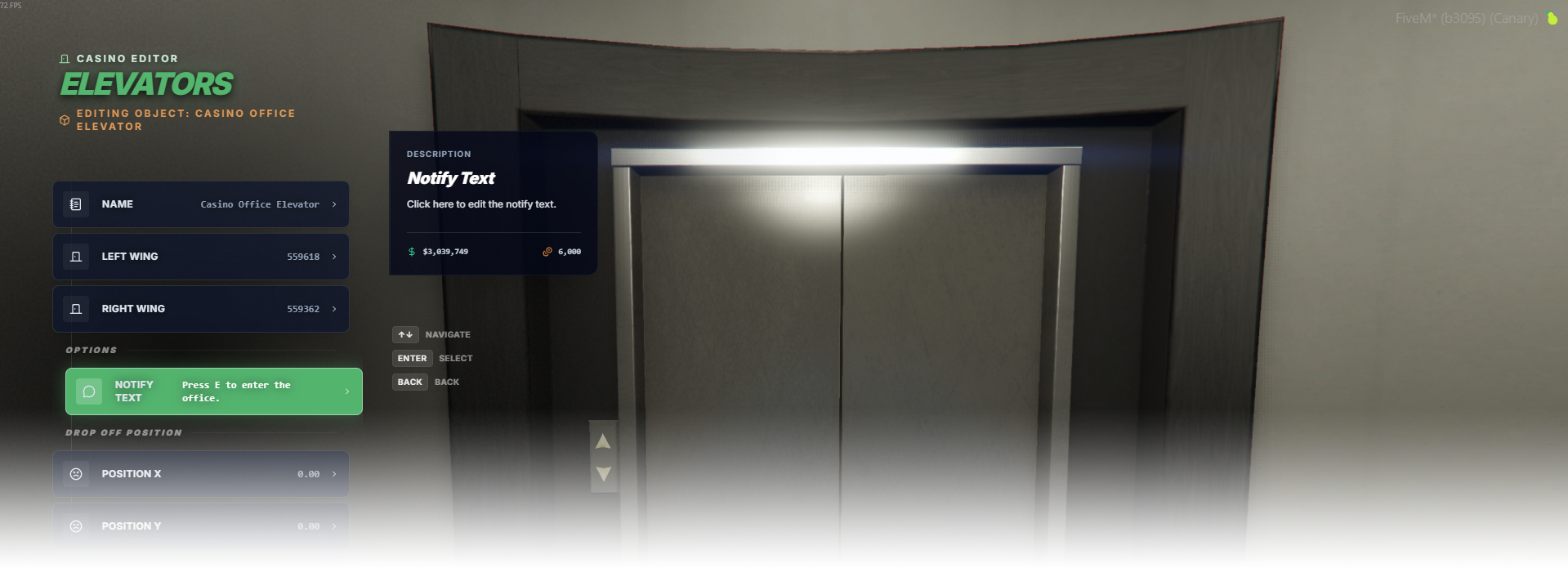
The **Elevators** editor page simply lets players link existing elevator doors from their interiors and make them usable by linking the left and right doors, then choosing a drop-off position.

<div data-full-width="false"><figure><img src="https://1037498771-files.gitbook.io/~/files/v0/b/gitbook-x-prod.appspot.com/o/spaces%2F-MZErcztD5BvrKnwRGJq%2Fuploads%2Fgit-blob-672c8420899afceebe6e2a932c765363ff7a786d%2Fcapt_elevator.png?alt=media" alt=""><figcaption></figcaption></figure></div>

### Editor Settings

<table data-full-width="false"><thead><tr><th>Setting</th><th>Type</th><th>Info</th></tr></thead><tbody><tr><td>Name</td><td>Text</td><td>Choose a display name for the elevator group</td></tr><tr><td>Left wing</td><td>Action / Link selector</td><td>Open linker for the left elevator door object</td></tr><tr><td>Right wing</td><td>Action / Link selector</td><td>Open linker for the right elevator door object</td></tr><tr><td>Notify text</td><td>Text</td><td>Set interaction prompt shown near elevator target (for example <code>Press E to enter.</code>)</td></tr><tr><td>Drop-off X/Y/Z</td><td>Vector3 (read-only display + quick set)</td><td>Target teleport position after entering elevator</td></tr><tr><td>Drop-off heading</td><td>Number (read-only display + quick set)</td><td>Player heading after teleport</td></tr><tr><td>Use current coords</td><td>Action</td><td>Copy current player position/heading into drop-off fields</td></tr><tr><td>Proximity</td><td>Number</td><td>Set interaction distance in meters</td></tr><tr><td>Load only interiors</td><td>Toggle</td><td>Load this elevator only while players are in interiors</td></tr><tr><td>Add elevator</td><td>Action</td><td>Create a new elevator group</td></tr><tr><td>Delete elevator</td><td>Action</td><td>Delete selected elevator group</td></tr></tbody></table>

## Door linking (left/right wings)

Linking elevator doors is designed to be simple:

1. Open an elevator group.
2. Select **Left wing** or **Right wing**.
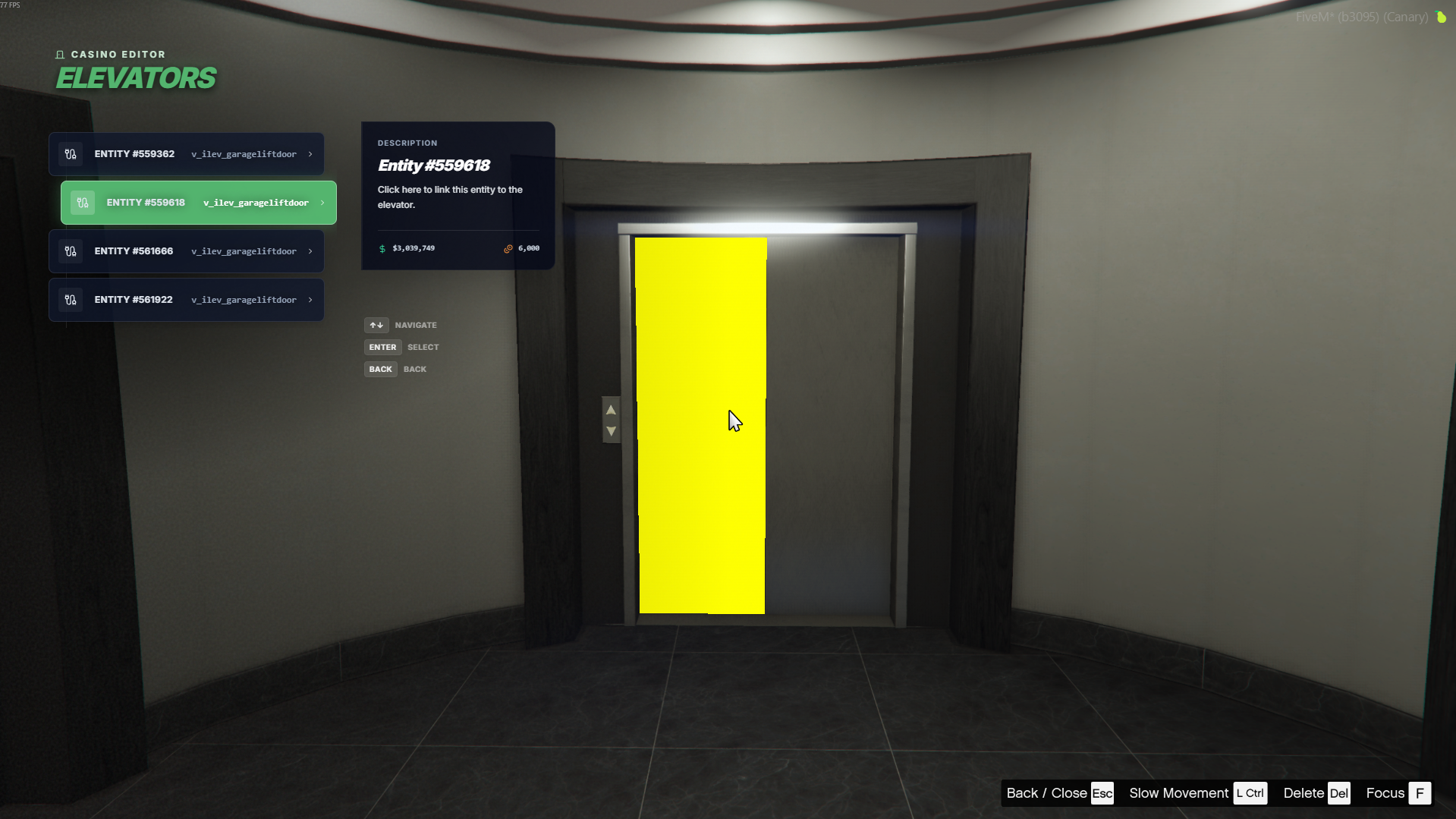
3. The editor scans nearby world objects and shows a list of matching door entities.
4. The selected entity will be blinking, so you're sure you're picking the right object.
5. Pick the correct entity from the list to link that side.

The link list is built from nearby objects (within \~10m) whose model matches `ElevatorModels`, so you get a direct selectable list of valid door entities instead of manually typing coordinates.

<figure><img src="https://1037498771-files.gitbook.io/~/files/v0/b/gitbook-x-prod.appspot.com/o/spaces%2F-MZErcztD5BvrKnwRGJq%2Fuploads%2Fgit-blob-61a81e3fbe3803ecca85fb49eb154a22742d43a1%2Felevator_linkink.png?alt=media" alt="" width="375"><figcaption></figcaption></figure>

## ElevatorModels

Valid linkable door models are defined in `rcore_casino/configs/elevators.lua` in `ElevatorModels`.

Only models from this list are shown in the door-link picker.

```lua
ElevatorModels = {
  "v_ilev_garageliftdoor", "ADD_YOUR_DOOR_MODEL_HERE"
}
```

## ⚠️Interior requirement (important)

Elevator doors must already exist in the interior/map for elevator animations/interactions to work properly.

The system links to real world objects. In practice, this means you should map/place your elevator doors in your MLO first, then link them in the editor.


---

# Agent Instructions: Querying This Documentation

If you need additional information that is not directly available in this page, you can query the documentation dynamically by asking a question.

Perform an HTTP GET request on the current page URL with the `ask` query parameter:

```
GET https://documentation.rcore.cz/paid-resources/rcore_casino/rcore_casino-2/editor/elevators.md?ask=<question>
```

The question should be specific, self-contained, and written in natural language.
The response will contain a direct answer to the question and relevant excerpts and sources from the documentation.

Use this mechanism when the answer is not explicitly present in the current page, you need clarification or additional context, or you want to retrieve related documentation sections.