# Digital Walls

The **Digital Walls** editor page manages in-world video screens rendered using GTA V render targets and a DUI (Chromium) web view.

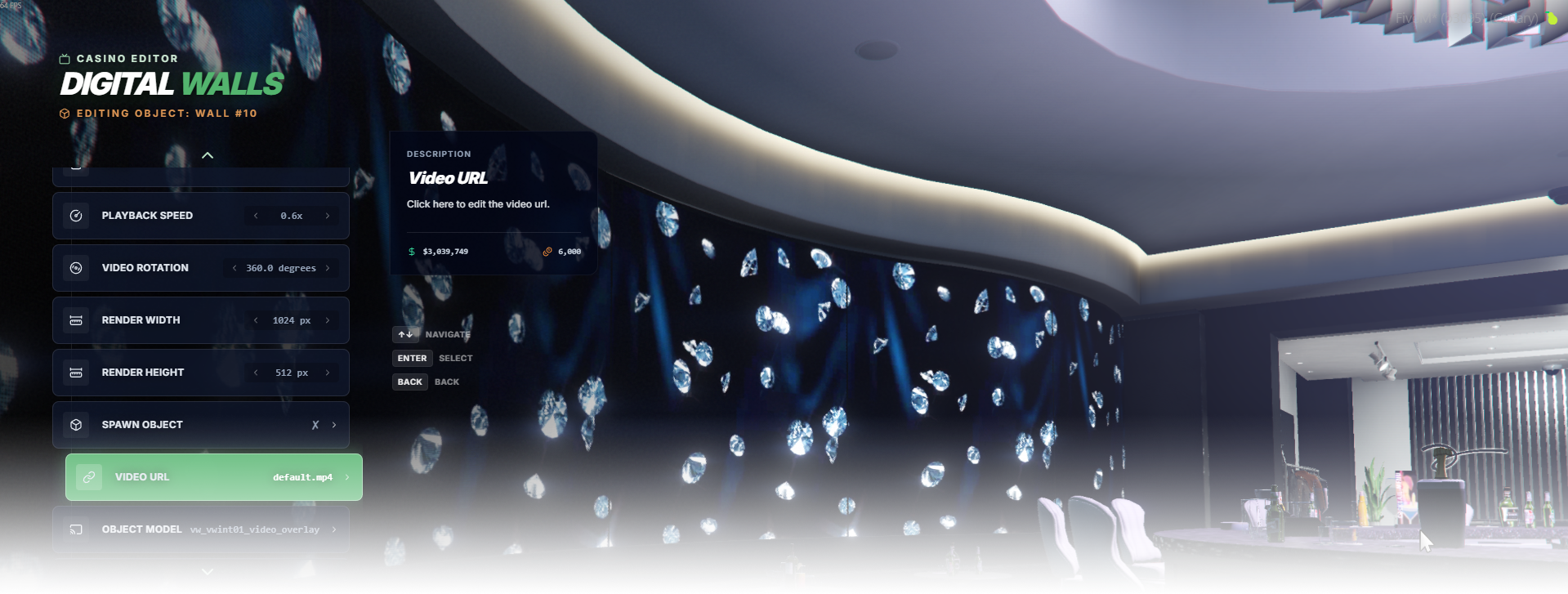
<div data-full-width="false"><figure><img src="https://1037498771-files.gitbook.io/~/files/v0/b/gitbook-x-prod.appspot.com/o/spaces%2F-MZErcztD5BvrKnwRGJq%2Fuploads%2Fgit-blob-ea57e0e26e6c8fbab3352dcecb8628b1a00a79d6%2Fcapt_walls.png?alt=media" alt=""><figcaption></figcaption></figure></div>

Each wall:

* streams a video file through an internal web view
* renders the video onto a GTA render target
* optionally spawns a custom object model to display the screen

## Render Targets

Digital walls use GTA V **named render targets**.

A render target is a texture surface attached to a model where the video will be drawn.

Two fields define this link:

| Field              | Purpose                                           |
| ------------------ | ------------------------------------------------- |
| `renderTargetName` | Name of the render target used by the game engine |
| `renderModel`      | Model that owns the render target                 |

The render target must already exist on the model.

Example of the Diamond Casino wall:

| Field              | Value                       |
| ------------------ | --------------------------- |
| `renderTargetName` | casinoscreen\_01            |
| `renderModel`      | vw\_vwint01\_video\_overlay |

### Editor Settings

<table data-full-width="false"><thead><tr><th>Setting</th><th>Type</th><th>Info</th></tr></thead><tbody><tr><td>Name</td><td>Text</td><td>Choose a display name for the digital wall</td></tr><tr><td>Playback speed</td><td>Select/List</td><td>Set video playback rate (0.0 to 5.0)</td></tr><tr><td>Video rotation</td><td>Select/List</td><td>Rotate video texture mapping in degrees (0 to 360)</td></tr><tr><td>Render width</td><td>Select/List + Text Input</td><td>Set render texture width (10 to 2048)</td></tr><tr><td>Render height</td><td>Select/List + Text Input</td><td>Set render texture height (10 to 2048)</td></tr><tr><td>Use custom model</td><td>Toggle</td><td>Spawn/manage a custom object model for the wall display surface</td></tr><tr><td>Video URL</td><td>Text</td><td>Set the direct video file URL used by the wall stream</td></tr><tr><td>Object model</td><td>Text</td><td>Set model used for render target linking (<code>casinowall</code> alias resolves to <code>vw_vwint01_video_overlay</code>)</td></tr><tr><td>Render target</td><td>Text</td><td>Set named render target to draw the video texture into</td></tr><tr><td>Proximity</td><td>Number</td><td>Set interaction/subscription distance in meters</td></tr><tr><td>Load only interiors</td><td>Toggle</td><td>Load this wall only while players are in interiors</td></tr><tr><td>Reload wall</td><td>Action</td><td>Force wall stream refresh for subscribers</td></tr><tr><td>Add wall</td><td>Action</td><td>Create a new digital wall at current player spawn coords/heading</td></tr><tr><td>Delete wall</td><td>Action</td><td>Delete selected digital wall</td></tr></tbody></table>

## Creating Wall

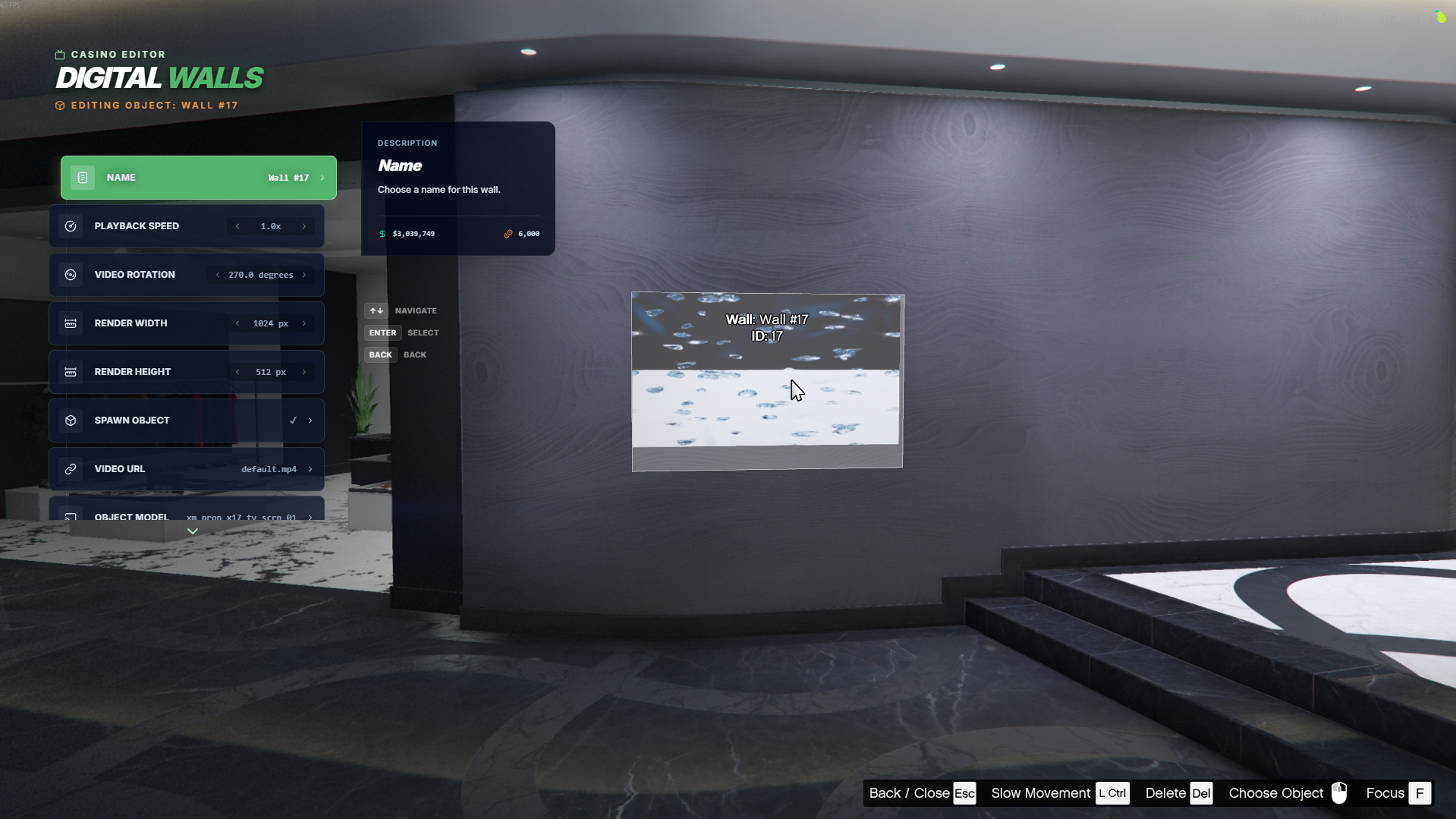
By default, the editor creates a TV object with the default Diamond video attached. This is the same video effect used inside the Diamond Casino.

You can change the Object Model to any prop you prefer. However, make sure the selected model contains a render target that can display the video. If the object does not include a render target, the video will not appear on the surface.

<figure><img src="https://1037498771-files.gitbook.io/~/files/v0/b/gitbook-x-prod.appspot.com/o/spaces%2F-MZErcztD5BvrKnwRGJq%2Fuploads%2Fgit-blob-7ae90c8b3cb8271bbfe8c937141bc777251bb8c3%2Fwall_as_prop.png?alt=media" alt="" width="375"><figcaption></figcaption></figure>

## Linking Wall to an Interior Object

Some interiors already contain prebuilt render targets.

A good example is the Diamond Casino, which includes several surfaces designed to display video content.

These surfaces usually appear as black rectangles in the interior. They are render targets that can display custom textures or video.

Instead of spawning a prop, the system can attach the video renderer directly to one of these interior render targets.

To use this method, make sure to disable the "Spawn Object" option in the editor menu. This will prevent the system from creating a new prop and instead link the wall to the existing interior surface.

<figure><img src="https://1037498771-files.gitbook.io/~/files/v0/b/gitbook-x-prod.appspot.com/o/spaces%2F-MZErcztD5BvrKnwRGJq%2Fuploads%2Fgit-blob-ea57e0e26e6c8fbab3352dcecb8628b1a00a79d6%2Fcapt_walls.png?alt=media" alt="" width="375"><figcaption></figcaption></figure>

## ⚠️Performance Notes

Digital walls rely on GTA V's DUI rendering system. Each wall runs its own video renderer, which consumes system resources. Because of this, the number of simultaneously active walls is naturally limited by the game engine.

For optimal performance, it is recommended to keep the number of active video walls reasonable, especially when placing multiple walls within the same area.