# Cashiers

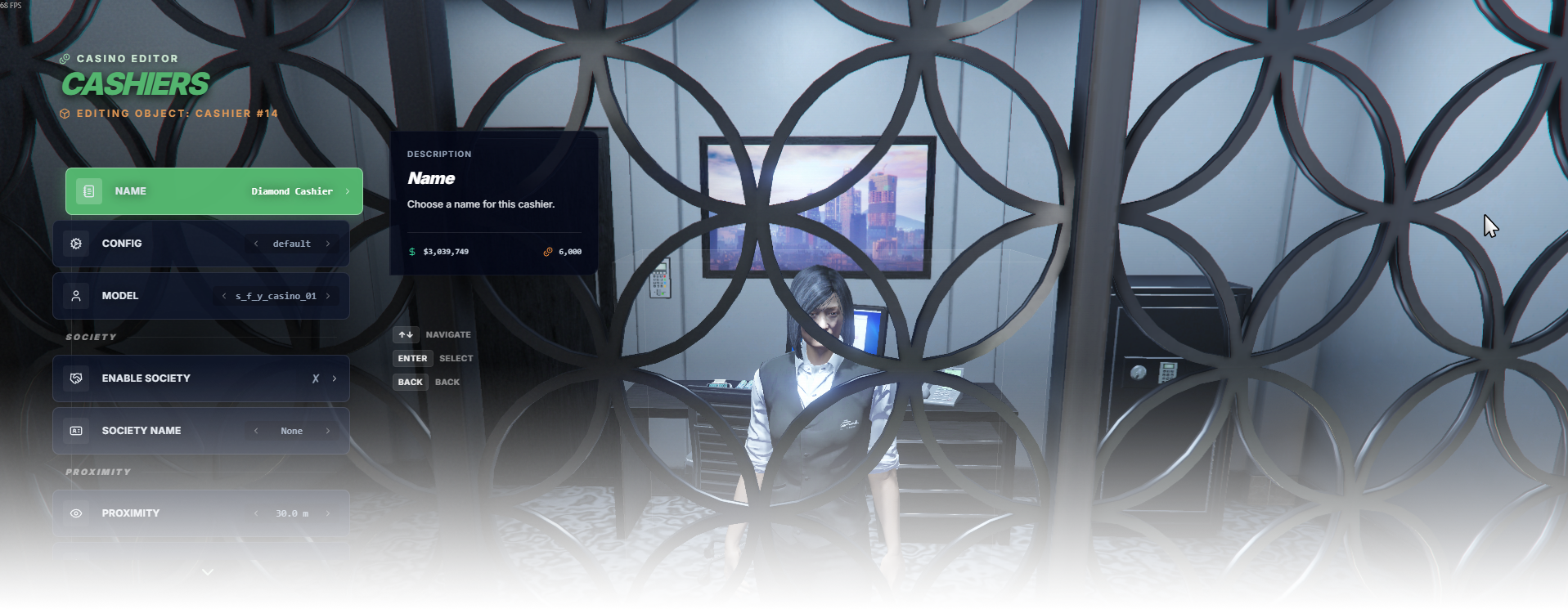
The **Cashiers** editor page manages cashier NPCs used by the casino system.

<div data-full-width="false"><figure><img src="https://1037498771-files.gitbook.io/~/files/v0/b/gitbook-x-prod.appspot.com/o/spaces%2F-MZErcztD5BvrKnwRGJq%2Fuploads%2Fgit-blob-d29f79dd63534cef095c65125558553629e22922%2Fcapt_cashier.png?alt=media" alt=""><figcaption></figcaption></figure></div>

### Editor Settings

<table data-full-width="false"><thead><tr><th>Setting</th><th>Type</th><th>Info</th></tr></thead><tbody><tr><td>Name</td><td>Text</td><td>Choose a display name for the cashier</td></tr><tr><td>Cashier config</td><td>Select/List</td><td>Choose which cashier preset is used</td></tr><tr><td>Ped model</td><td>Select/List</td><td>Choose which NPC model the cashier uses</td></tr><tr><td>Job based</td><td>Toggle</td><td>Mark this cashier position job-based (rcore_casino_jobs)</td></tr><tr><td>Society enabled</td><td>Toggle</td><td>Enable society/account integration for this cashier</td></tr><tr><td>Society name</td><td>Text/List</td><td>Set the society/account name used when society is enabled</td></tr><tr><td>Proximity</td><td>Number</td><td>Set proximity distance in meters</td></tr><tr><td>Load only interiors</td><td>Toggle</td><td>Load this cashier only while players are in interiors</td></tr></tbody></table>

## CashierConfigs

Cashier presets are defined in `rcore_casino/configs/cashier.lua` inside the `CashierConfigs` table. The editor "Cashier config" setting selects one of these config IDs.

<table data-full-width="false"><thead><tr><th>Config option</th><th>Type</th><th>Info</th></tr></thead><tbody><tr><td>id</td><td>Text</td><td>Unique config ID used by cashiers (example: <code>default</code>)</td></tr><tr><td>color</td><td>Color (RGB)</td><td>Menu theme color for this cashier config</td></tr><tr><td>pedSkinId</td><td>Number</td><td>Internal ped skin variant/index for the cashier UI/profile</td></tr><tr><td>caption</td><td>Text</td><td>Cashier menu caption/title text</td></tr><tr><td>acquireChipsEnabled</td><td>Toggle</td><td>Allow players to buy/acquire chips</td></tr><tr><td>tradeInChipsEnabled</td><td>Toggle</td><td>Allow players to trade chips back into money</td></tr><tr><td>dailyBonus</td><td>Number</td><td>Daily bonus chips amount</td></tr><tr><td>dailyBonusSaveData</td><td>Text</td><td>Save key used for daily bonus cooldown/limits</td></tr><tr><td>tradeInDailyLimit</td><td>Number</td><td>Maximum chips tradable per day</td></tr><tr><td>tradeInDailyLimitSaveData</td><td>Text</td><td>Save key used for trade-in daily limit tracking</td></tr><tr><td>exchangeRate</td><td>Number</td><td>Money per chip conversion rate</td></tr><tr><td>showPlayerBalance</td><td>Toggle</td><td>Show player balance in cashier menu</td></tr><tr><td>showSocietyBalance</td><td>Toggle</td><td>Show society balance in cashier menu</td></tr><tr><td>showBonusChipsBalance</td><td>Toggle</td><td>Show bonus chips balance in cashier menu</td></tr><tr><td>onOpen</td><td>Function</td><td>Callback executed when cashier menu opens</td></tr><tr><td>onClose</td><td>Function</td><td>Callback executed when cashier menu closes</td></tr><tr><td>items</td><td>List</td><td>Custom purchasable entries (name, price, description, icon, confirmation, onPurchase, separators)</td></tr></tbody></table>

## Cashier Skins

Cashier ped models are defined in `rcore_casino/configs/cashier.lua` in the `CashierSkins` list.

```lua
CashierSkins = {"s_f_y_casino_01", "u_f_m_casinocash_01", "ADD_YOUR_PED_MODEL_HERE"}
```

In order to choose models in the editor, you have to add them in this list. Find more ped models at fivem docs: <https://docs.fivem.net/docs/game-references/ped-models/>


---

# Agent Instructions: Querying This Documentation

If you need additional information that is not directly available in this page, you can query the documentation dynamically by asking a question.

Perform an HTTP GET request on the current page URL with the `ask` query parameter:

```
GET https://documentation.rcore.cz/paid-resources/rcore_casino/rcore_casino-2/editor/cashier.md?ask=<question>
```

The question should be specific, self-contained, and written in natural language.
The response will contain a direct answer to the question and relevant excerpts and sources from the documentation.

Use this mechanism when the answer is not explicitly present in the current page, you need clarification or additional context, or you want to retrieve related documentation sections.