> For the complete documentation index, see [llms.txt](https://documentation.rcore.cz/llms.txt). Markdown versions of documentation pages are available by appending `.md` to page URLs; this page is available as [Markdown](https://documentation.rcore.cz/paid-resources/rcore_casino/features/editor/restricted-areas.md).

# Restricted Areas

Managing Restricted Areas in the Casino Editor

The Restricted Areas editor page lets you create editable zones that check access restrictions and move unauthorized players to a configured safe location.

<div data-full-width="false"><figure><img src="https://1037498771-files.gitbook.io/~/files/v0/b/gitbook-x-prod.appspot.com/o/spaces%2F-MZErcztD5BvrKnwRGJq%2Fuploads%2Fgit-blob-900442ae63312c69a25d33a9706700b49b69bc5f%2Fcapt_areas.png?alt=media" alt=""><figcaption></figcaption></figure></div>

### Editor Settings

<table data-full-width="false"><thead><tr><th>Setting</th><th>Info</th></tr></thead><tbody><tr><td>Name</td><td>Choose a display name for the restricted area</td></tr><tr><td>Area position (X/Y/Z)</td><td>Set center position of the restricted volume</td></tr><tr><td>Heading</td><td>Set area orientation (mainly for rectangle shape)</td></tr><tr><td>Width</td><td>Set area width</td></tr><tr><td>Height</td><td>Set area height (used for bounding-box dimensions)</td></tr><tr><td>Depth</td><td>Set area depth/vertical range</td></tr><tr><td>Change Position</td><td>Move the restricted area using gizmo controls</td></tr><tr><td>Change Rotation</td><td>Rotate the restricted area using gizmo controls (rectangle shape only)</td></tr><tr><td>Shape</td><td>Rectangle (<code>1</code>) or Sphere (<code>2</code>). For shape 2, Width is the diameter and Depth the height.</td></tr><tr><td>Safe position (X/Y/Z)</td><td>Set fallback/safe teleport position for unauthorized players</td></tr><tr><td>Copy Coords as Safe Zone</td><td>Copy current player position into <code>safeCoord</code></td></tr><tr><td>Notify</td><td>Set message shown when a player is moved out of the restricted area</td></tr><tr><td>Manage Restrictions</td><td>Open restrictions editor (job/item/vehicle/vip rules)</td></tr><tr><td>Add Area</td><td>Create a new area near the current player position</td></tr><tr><td>Delete Area</td><td>Delete selected area</td></tr></tbody></table>

## RestrictionTypes

Inside the restrictions sub-menu, visible fields depend on selected restriction type.

<table data-full-width="false"><thead><tr><th>Restriction type</th><th>Settings</th><th>Info</th></tr></thead><tbody><tr><td><code>job</code></td><td>Job Name, Job Grade</td><td>Require the player's job, and optionally an exact grade. Lower the grade below 0 in the editor to set it to Any.</td></tr><tr><td><code>item</code></td><td>Item Name, Item Count</td><td>Require inventory item and amount</td></tr><tr><td><code>vehicle</code></td><td>Vehicle Hash, Vehicle Plate</td><td>Require specific vehicle model/hash and optionally plate</td></tr><tr><td><code>vip</code></td><td>None</td><td>Use VIP access check in restriction logic</td></tr></tbody></table>

## Area Shapes

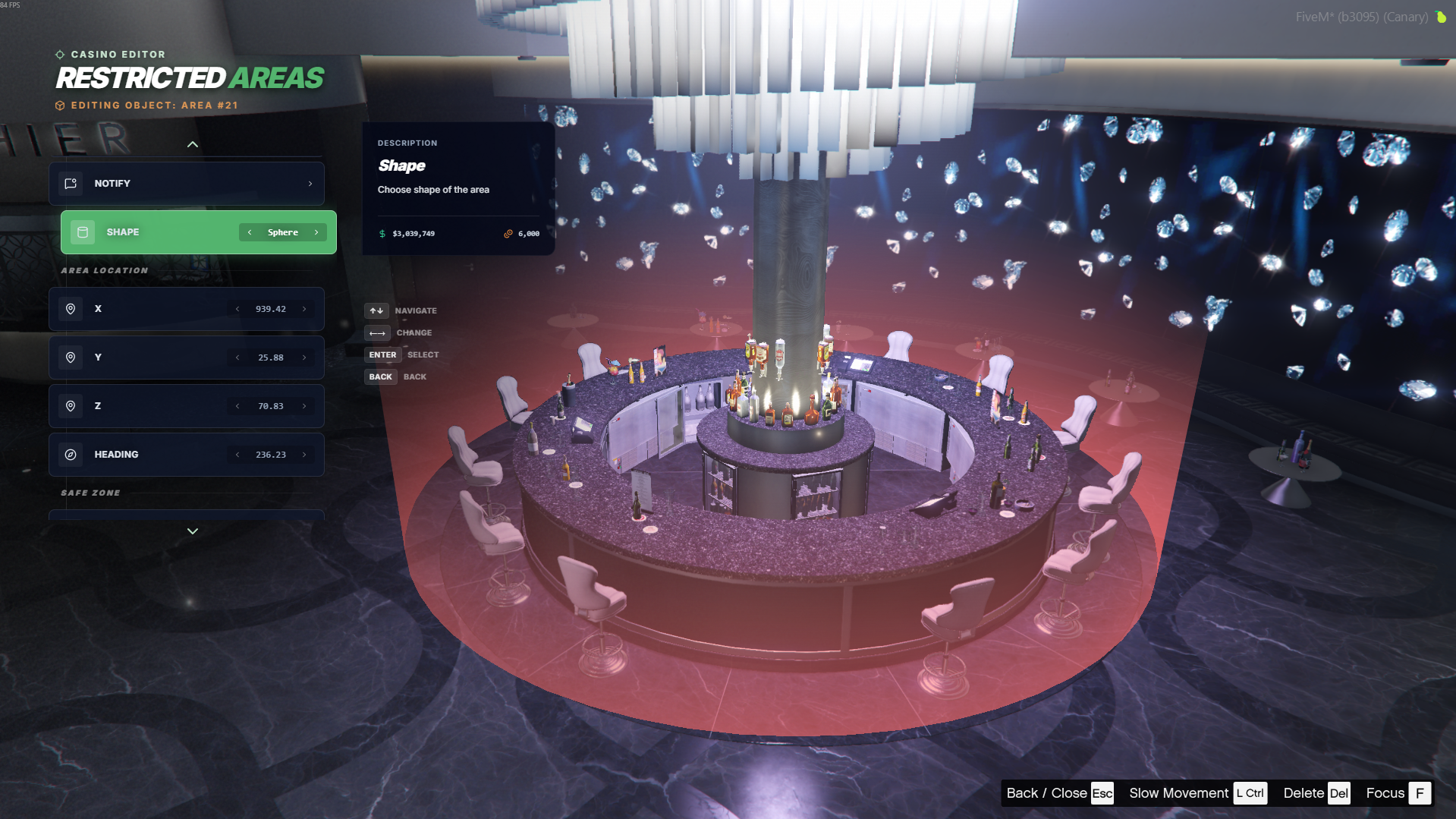
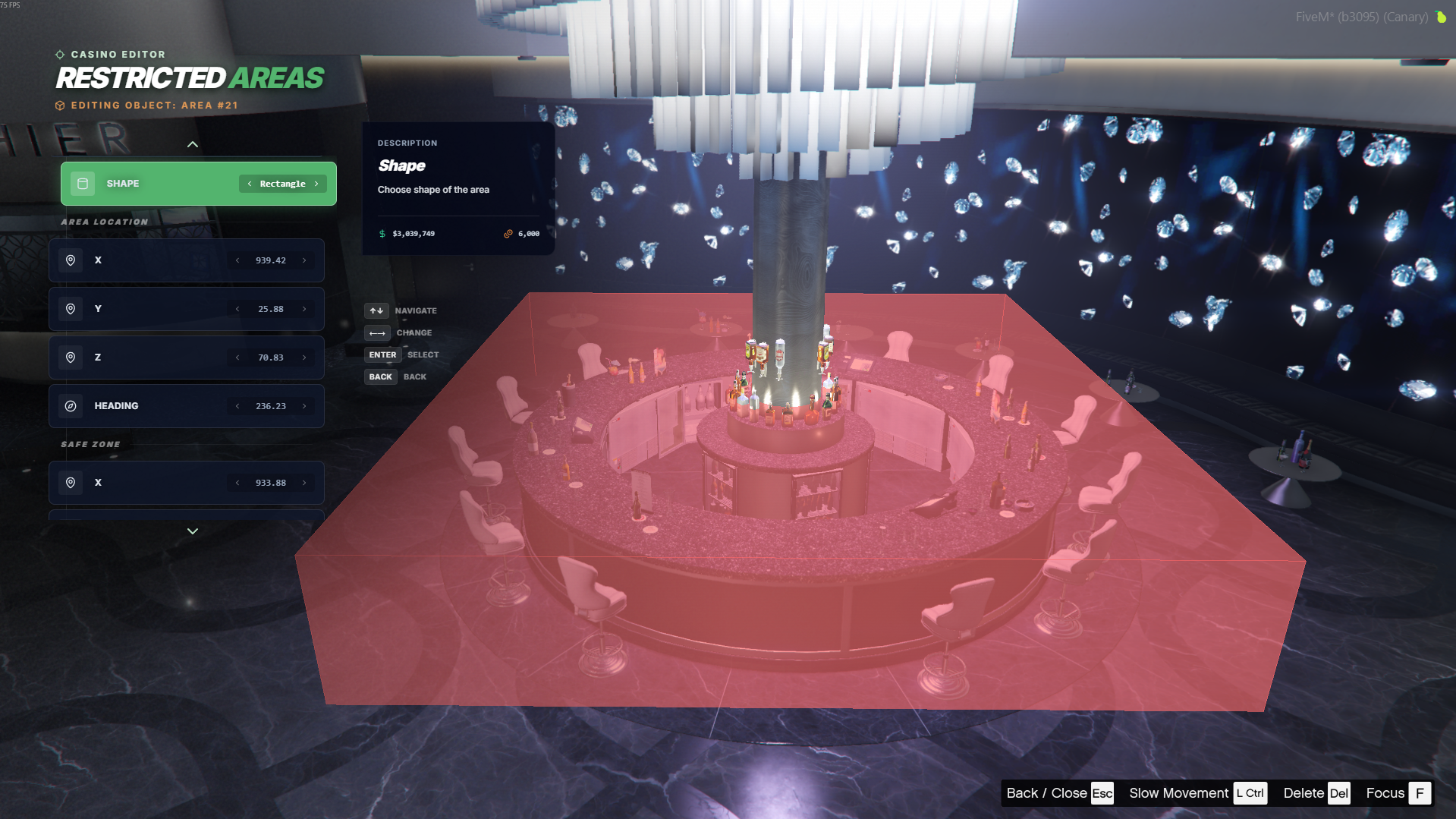
You can choose between two area shapes.

<div data-full-width="false"><figure><img src="https://1037498771-files.gitbook.io/~/files/v0/b/gitbook-x-prod.appspot.com/o/spaces%2F-MZErcztD5BvrKnwRGJq%2Fuploads%2Fgit-blob-54da22e3b159c402ece8b13e0263ae0c3341d62a%2Farea_sphere.png?alt=media" alt=""><figcaption><p>Sphere</p></figcaption></figure></div>

<div data-full-width="false"><figure><img src="https://1037498771-files.gitbook.io/~/files/v0/b/gitbook-x-prod.appspot.com/o/spaces%2F-MZErcztD5BvrKnwRGJq%2Fuploads%2Fgit-blob-6b4ba67d6287c3828014c8cdd6c995cbedfe200f%2Farea_rectangle.png?alt=media" alt=""><figcaption><p>Rectangle</p></figcaption></figure></div>

## Preview of Restricted Area

{% embed url="<https://files.gitbook.com/v0/b/gitbook-x-prod.appspot.com/o/spaces%2FFicarM3Z9iXA9Tfz78vZ%2Fuploads%2F1vpFxMp8ZmT63lCJ886J%2Farea_action.mp4?alt=media&token=eece2f20-e931-4c0a-be7b-a4a835226e1a>" %}