> For the complete documentation index, see [llms.txt](https://documentation.rcore.cz/llms.txt). Markdown versions of documentation pages are available by appending `.md` to page URLs; this page is available as [Markdown](https://documentation.rcore.cz/paid-resources/rcore_casino/features/editor/office-computers.md).

# Office Computers

Managing Office Computers in the Casino Editor

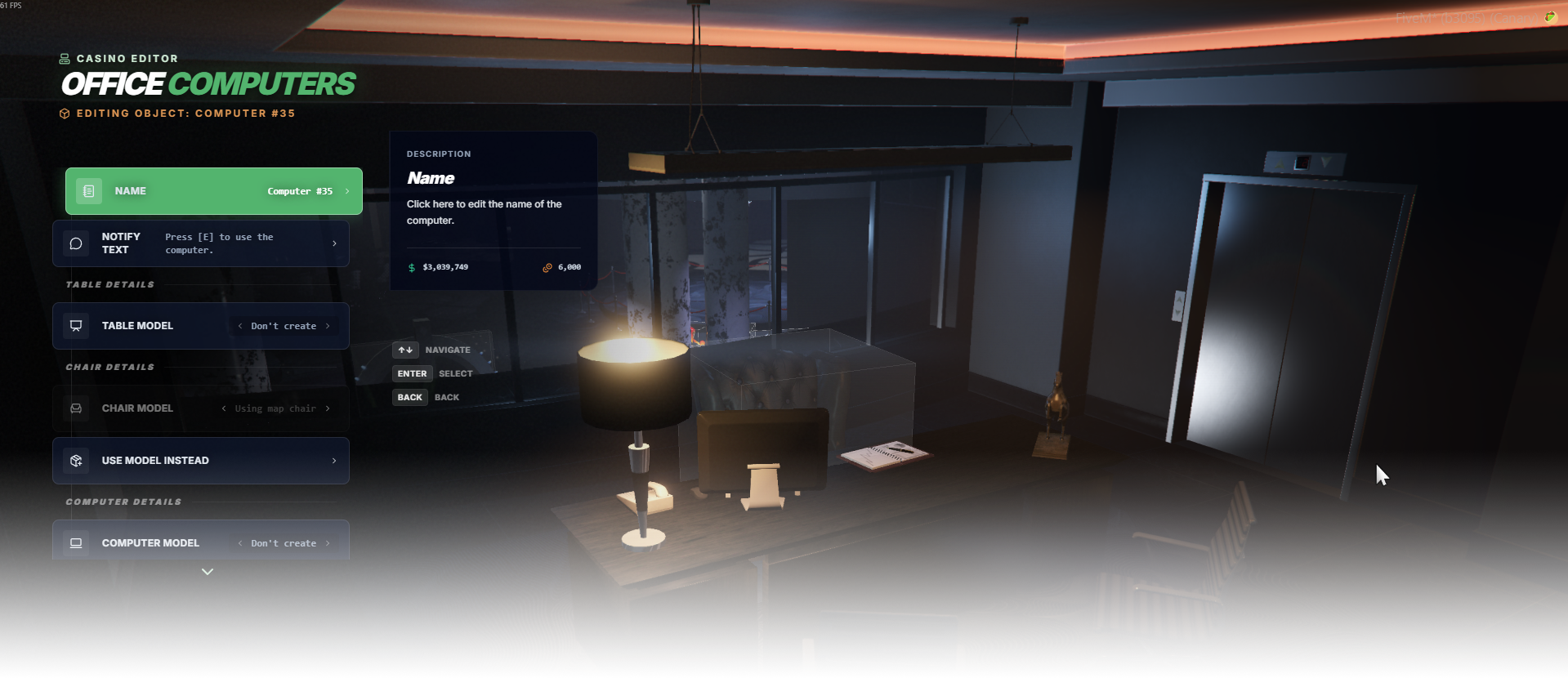
The Office Computers editor allows you to create interactive computer setups inside the casino. Each setup is composed of three main parts: a table, chair, and computer object.

Players can approach the chair and interact with the computer. By default, these computers are used by staff or administrators to view and control security cameras around the casino.

However, the computer interaction is fully configurable. Instead of cameras, it can trigger custom events, exports, or other scripted actions, allowing the computer to be used for various gameplay features.

<div data-full-width="false"><figure><img src="https://1037498771-files.gitbook.io/~/files/v0/b/gitbook-x-prod.appspot.com/o/spaces%2F-MZErcztD5BvrKnwRGJq%2Fuploads%2Fgit-blob-abe5930364bed823bc96d4aed0164005ad9462f1%2Fcapt_computers.png?alt=media" alt=""><figcaption></figcaption></figure></div>

### Editor Settings

<table data-full-width="false"><thead><tr><th>Setting</th><th>Info</th></tr></thead><tbody><tr><td>Name</td><td>Choose a display name for the computer setup</td></tr><tr><td>Notify Text</td><td>Set interaction prompt shown near computer chair target</td></tr><tr><td>Table Model</td><td>Choose table object model (<code>0</code> = do not create)</td></tr><tr><td>Chair Model</td><td>Choose chair object model (<code>0</code> = do not create)</td></tr><tr><td>Use Map Chair Instead</td><td>Open nearby chair entity linker and attach to existing mapped chair</td></tr><tr><td>Use Model Instead</td><td>Switch back to created/model-based chair mode after linking map chair</td></tr><tr><td>Computer Model</td><td>Choose computer object model (<code>0</code> = do not create)</td></tr><tr><td>Action Type</td><td>Choose interaction mode: <code>event</code>, <code>export</code>, <code>none</code>, <code>cameras</code></td></tr><tr><td>Event Name</td><td>Event payload used when action type is <code>event</code></td></tr><tr><td>Export Name</td><td>Export string used when action type is <code>export</code></td></tr><tr><td>Manage Cameras</td><td>Add/delete camera screen entries when action type is <code>cameras</code></td></tr><tr><td>Manage Restrictions</td><td>Open restrictions editor for computer access rules</td></tr><tr><td>Proximity</td><td>Set interaction/subscription distance in meters</td></tr><tr><td>Load Only Inside Interiors</td><td>Load this computer setup only while players are in interiors</td></tr><tr><td>Add Computer</td><td>Create a new computer setup with default chair/table/computer objects</td></tr><tr><td>Delete</td><td>Delete selected computer setup</td></tr></tbody></table>

## Chair linking and chair creating

Office computers support two chair workflows:

1. Create chair from model (`chair.createObject = true`) using `ComputerChairModels`.
2. Link existing mapped chair (`chair.createObject = false`) by selecting Use map chair and choosing one of the nearby detected chair entities.

This makes it easy to integrate computers into custom interiors where chairs are already mapped.

## Model lists

Selectable models are configured in `configs/interior/computers.lua`:

```lua
ComputerChairModels = {
    "vw_prop_vw_offchair_02",
    "ex_prop_offchair_exec_04",
    "ba_prop_battle_club_chair_01",
    "v_corp_offchair",
    -1633198649,
    -2065455377,
    1942640657,
}

ComputerPropModels = {
    "ch_prop_laptop_01a",
}

ComputerTableModels = {
    "v_ind_dc_desk01",
}
```

To add your own chair, add its model name to the list.