> For the complete documentation index, see [llms.txt](https://documentation.rcore.cz/llms.txt). Markdown versions of documentation pages are available by appending `.md` to page URLs; this page is available as [Markdown](https://documentation.rcore.cz/paid-resources/rcore_banners/features/create-server-banner.md).

# Creating a New Server Banner

Step by step documentation how to create a new server banner.

There are 2 types of banners:

* **Custom** - a banner created from an image URL.
* **YTD** - a banner created from an image defined in a `.ytd` file (texture dictionary).

Supported image formats: **JPEG**, **PNG**, **GIF**.

{% hint style="warning" %}
You need the `APP_PERMS.ACCESS_CUSTOM_BANNER` permission to access banner creation - see [Permissions](/paid-resources/rcore_banners/configs/permissions.md).
{% endhint %}

{% tabs %}
{% tab title="Custom banner" %}
{% stepper %}
{% step %}

### Open Custom Banner

Open `/banners` - there should be a **Custom banner** option.

<figure><img src="https://1037498771-files.gitbook.io/~/files/v0/b/gitbook-x-prod.appspot.com/o/spaces%2F-MZErcztD5BvrKnwRGJq%2Fuploads%2Fgit-blob-dbcba2a28e92eb9a9a427e29e2cf00f835df346c%2FbannersCustomFirstStep.png?alt=media" alt=""><figcaption><p>Custom banner option, visible if you have permissions.</p></figcaption></figure>
{% endstep %}

{% step %}

### Fill in the Details

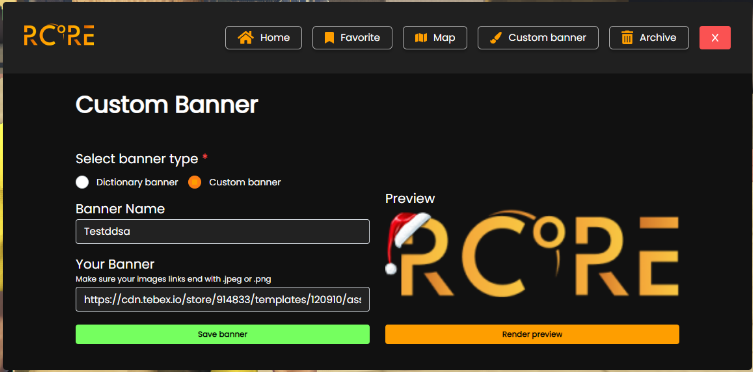
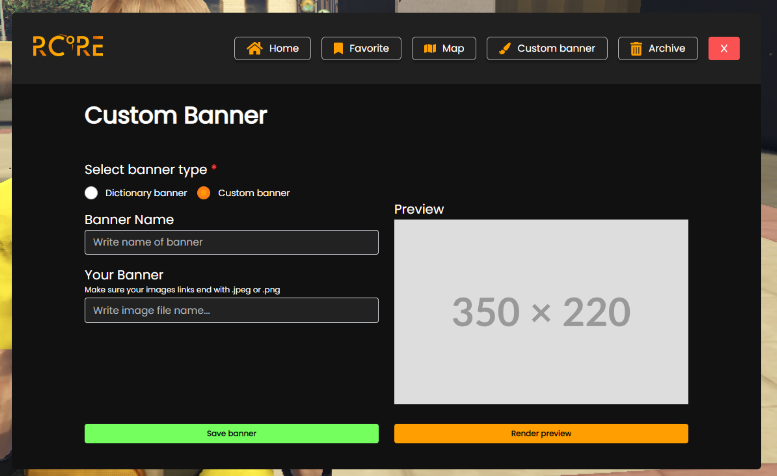
Select **Custom banner**, then fill in the banner name and the image URL under which the banner will be defined.

<figure><img src="https://1037498771-files.gitbook.io/~/files/v0/b/gitbook-x-prod.appspot.com/o/spaces%2F-MZErcztD5BvrKnwRGJq%2Fuploads%2Fgit-blob-e3b99fc07a66b185135811e881a2e739bcf1ddc6%2FbannersCustomSecondStep.png?alt=media" alt=""><figcaption><p>Filled information for the new banner.</p></figcaption></figure>
{% endstep %}

{% step %}

### Save

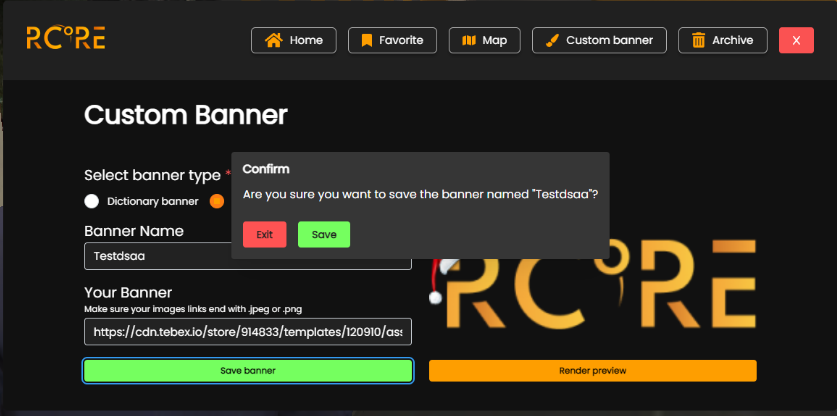
Click **Save banner** - you'll see a confirmation pop-up.

<figure><img src="https://1037498771-files.gitbook.io/~/files/v0/b/gitbook-x-prod.appspot.com/o/spaces%2F-MZErcztD5BvrKnwRGJq%2Fuploads%2Fgit-blob-71f68ea8f11f4c24d2657d78abf2356687679e14%2FbannersCustomThirdStep.png?alt=media" alt=""><figcaption><p>Confirmation to add the banner to the server or exit.</p></figcaption></figure>
{% endstep %}

{% step %}

### Done

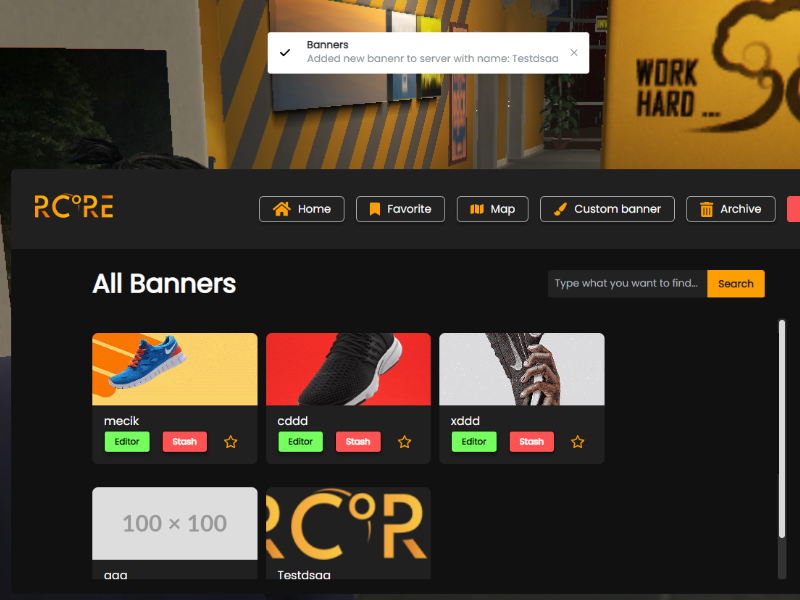
Click **Save** and the banner is added to the server - anybody can use it.

<figure><img src="https://1037498771-files.gitbook.io/~/files/v0/b/gitbook-x-prod.appspot.com/o/spaces%2F-MZErcztD5BvrKnwRGJq%2Fuploads%2Fgit-blob-de64d3c8824b9075297d2802d93a936ae28455a9%2FbannersCustomFinal.png?alt=media" alt=""><figcaption><p>Banner added successfully.</p></figcaption></figure>
{% endstep %}
{% endstepper %}
{% endtab %}

{% tab title="YTD banner" %}
{% stepper %}
{% step %}

### Add the Image

Add the image to `rcore_banners/stream/rcore_banners.ytd` with OpenIV.
{% endstep %}

{% step %}

### Open Dictionary Banner

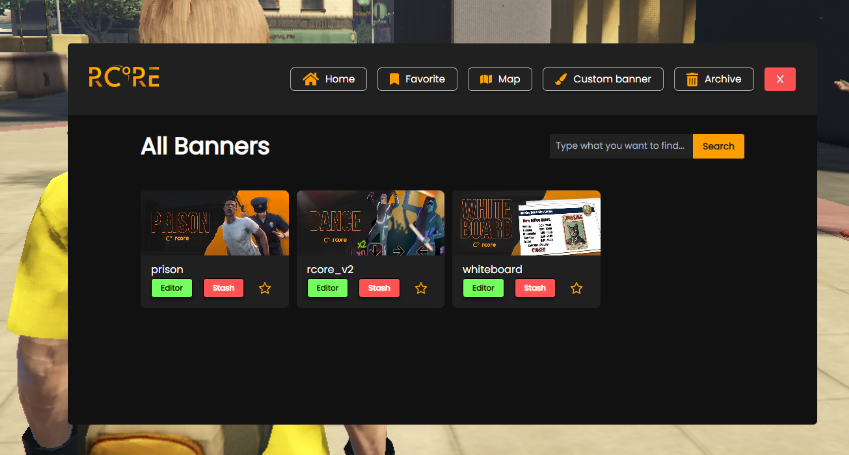
Load in-game and open `/banners` - there should be a **Dictionary banner** option.

<figure><img src="https://1037498771-files.gitbook.io/~/files/v0/b/gitbook-x-prod.appspot.com/o/spaces%2F-MZErcztD5BvrKnwRGJq%2Fuploads%2Fgit-blob-909935afa15b8ac6567385d285b2c8a2d9f927a3%2FbannersDictionaryFirst.png?alt=media" alt=""><figcaption><p>Dictionary banner option in the navbar.</p></figcaption></figure>
{% endstep %}

{% step %}

### Fill in the Details

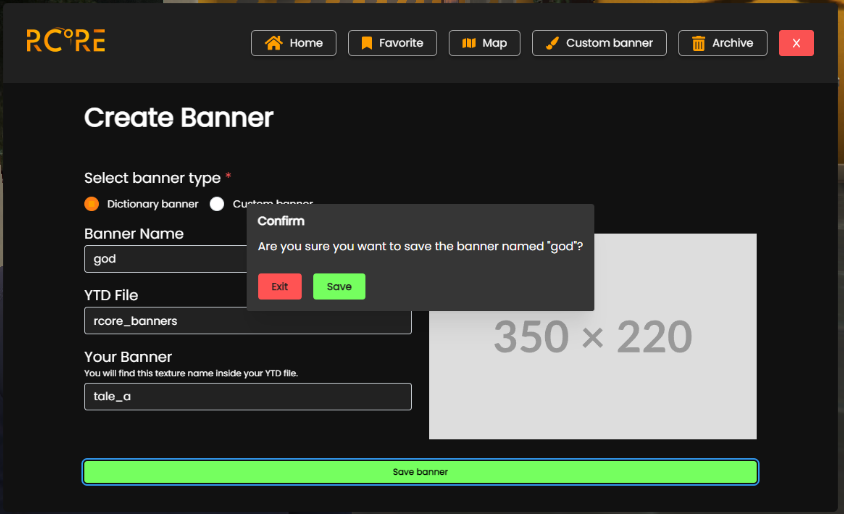
Click on **Dictionary banner** and fill in the banner creation form.

<figure><img src="https://1037498771-files.gitbook.io/~/files/v0/b/gitbook-x-prod.appspot.com/o/spaces%2F-MZErcztD5BvrKnwRGJq%2Fuploads%2Fgit-blob-fc6725f67af56ebd949dbd7305b96342fc90cfab%2FbannersDictionarySecond.png?alt=media" alt=""><figcaption><p>Banner creation form.</p></figcaption></figure>
{% endstep %}

{% step %}

### Save

Click **Save** - you're redirected to the homepage and your new YTD banner is visible to all players.

<figure><img src="https://1037498771-files.gitbook.io/~/files/v0/b/gitbook-x-prod.appspot.com/o/spaces%2F-MZErcztD5BvrKnwRGJq%2Fuploads%2Fgit-blob-de64d3c8824b9075297d2802d93a936ae28455a9%2FbannersCustomFinal.png?alt=media" alt=""><figcaption><p>New YTD banner added.</p></figcaption></figure>
{% endstep %}
{% endstepper %}
{% endtab %}
{% endtabs %}